Every action below does real work on your PC, from tidying folders to filling in web forms. Mix them in one workflow and start it the way that suits you.
Actions
Actions by area
Area
Actions
Files and folders
Get files in folder, Sort files into folders by type, Move, Copy, Rename (patterns, counters, date taken from photo data), Create folder, Write text to file, Open file or folder, Delete files (Recycle Bin, or permanently with confirmation)
Apps
Open application, Close application (politely, or forced with confirmation)
Browser
Open website (in your default browser, or a window Nimblio controls), Click on page, Fill in a form field, Get text from page
Text and data
Format date, Combine text, Replace text, Set variable, Ask for input
Logic
If / Otherwise, Repeat for each, Wait
Windows
Show notification, Show a message, Take screenshot (screen, primary screen, active window), Copy to clipboard, Set volume, Lock PC
Starts
Manual, global keyboard shortcut, schedule (catches up after sleep), when you sign in, when a new file lands in a folder
Browser actions use the Microsoft Edge or Google Chrome already installed on your PC. Nothing extra is downloaded. See every action and its settings, or start from a template.
Watch it run, step by step
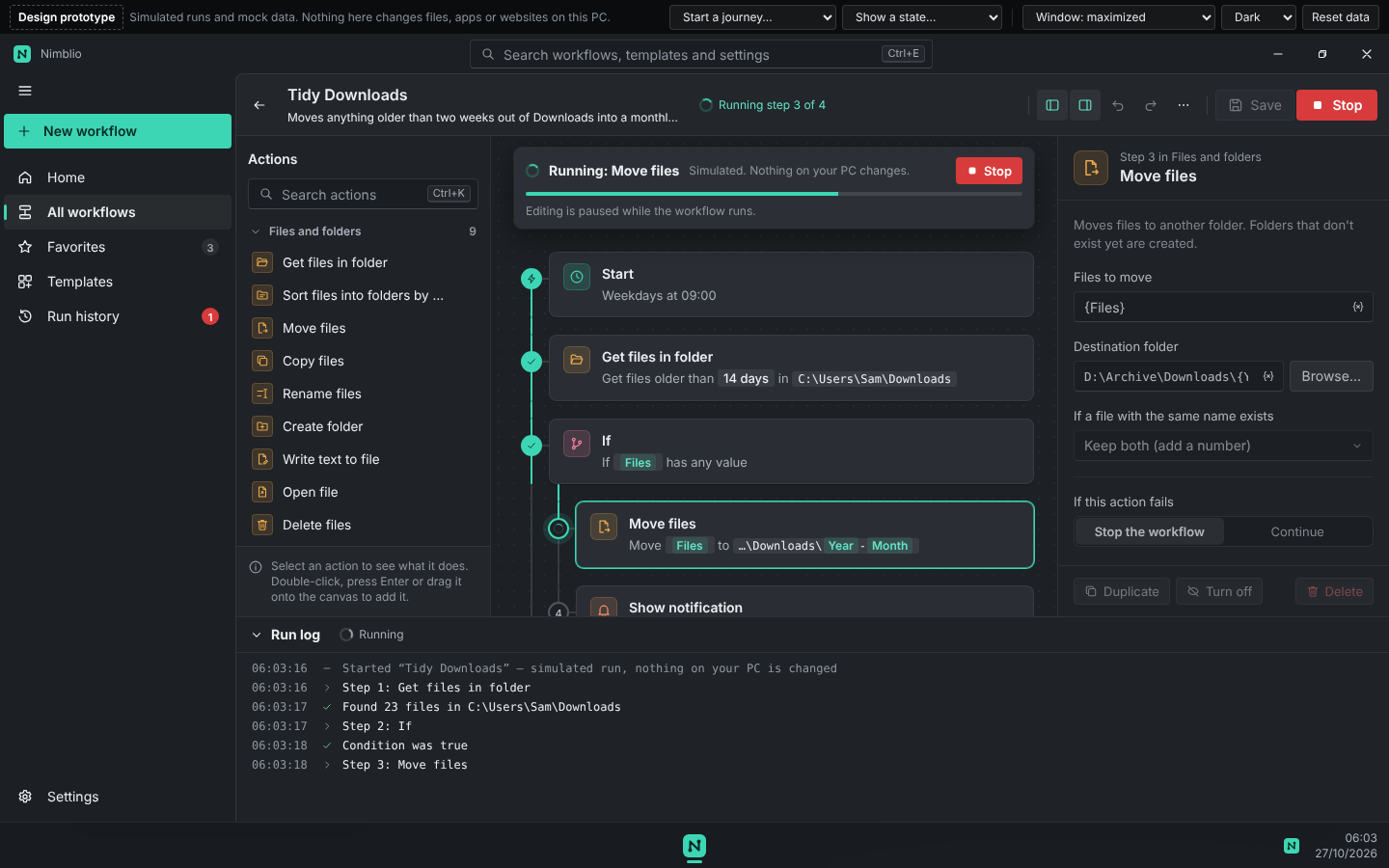
Press Run and the line fills as each action finishes. A banner shows progress with Stop, and the run log says what each step did, in plain words.
If something fails, the failed action is selected and the side panel explains what happened and how to fix it. Fix in editor takes you straight there from the run history.
A run in progress: finished steps fill the line, the current step is highlighted.
MCP server
Build workflows with Claude
Nimblio ships with Nimblio.Mcp.exe, a Model Context Protocol server. An assistant such as Claude can read the action library and your workflows, then create or fix workflows from a request in plain words.
Connect it in one step
In Nimblio, open Settings → AI assistants:
Claude Desktop: Add to Claude Desktop writes the entry for you and keeps a backup of your settings.
Claude Code: copy the claude mcp add nimblio command shown there.
Other MCP apps: copy the JSON configuration.
When the assistant saves a workflow, Nimblio shows “Claude created …” with an Open button.
Rules the server enforces
Everything it creates or changes is saved turned off. Nothing starts by itself until you have looked at it.
It can’t run, turn on or delete a workflow. Running is always your click in Nimblio.
Invalid input, such as an unknown action or a value outside the allowed list, is refused with an explanation, and nothing is saved.
It runs locally over standard input and output. Nothing is exposed to the network.
Tools the MCP server offers
Tool
What it does
list_actions
Every action, its settings and allowed values, and the starts available.
list_workflows, get_workflow
Read your workflows.
validate_workflow
Check a workflow before saving it.
create_workflow, update_workflow
Save a new or changed workflow, always turned off.
list_templates
The built-in templates.
get_run_history
Past runs, with the plain-language error of failed ones.
open_in_nimblio
Open the editor on a workflow so you can review it.
Safe by default
Built not to surprise you
Automation touches your files and apps, so Nimblio is careful in the places where mistakes cost the most.
Recycle Bin first
Deleted files go to the Recycle Bin unless you choose otherwise. Permanent deletes, overwrites and forced closes are explained next to the option and confirmed before the run.
Imported workflows arrive turned off
A workflow from a file or an assistant never starts by itself until you have looked at it and turned it on.
Warnings before anything destructive
Risky settings carry an inline explanation in red, right under the option that causes the risk.
Local-first and private
Workflows, history and logs live in your user profile. Diagnostics are off by default, and typed values can be hidden from logs.
A separate browser profile
Web automation uses its own Edge or Chrome profile by default, away from your everyday browsing.
Every run is on record
Run history keeps each step of every run, so you can see exactly what happened and when.
Good to know
Browser actions need Microsoft Edge or Google Chrome. Nimblio uses its own browser profile by default, so sites need one sign-in there.
Until the installer is code-signed, Windows SmartScreen shows a warning the first time. The download page explains how to check the file.
The MCP server works with assistants running on your PC. Cloud assistants can’t reach it.